What actually happens when you sign in
No install, no browser extension, no software on your computer. Signing in is a standard Google OAuth screen — here's exactly what it looks like and what it asks for, before you click anything.
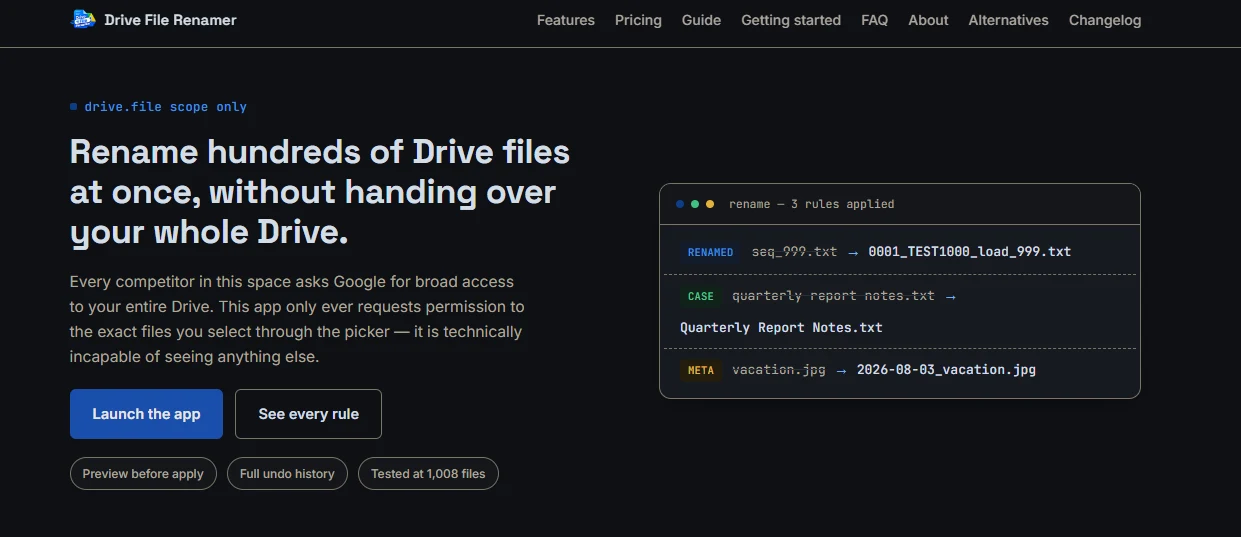
On the homepage, click “Launch the app”
You're sent to accounts.google.com — check the address bar, it's Google's own domain, not ours. We never see or handle your Google password at any point.
Pick your Google account
If you're signed into more than one Google account in this browser, Google asks you to choose which one to continue with. With only one account signed in, Google skips this screen entirely and moves straight to the next step.
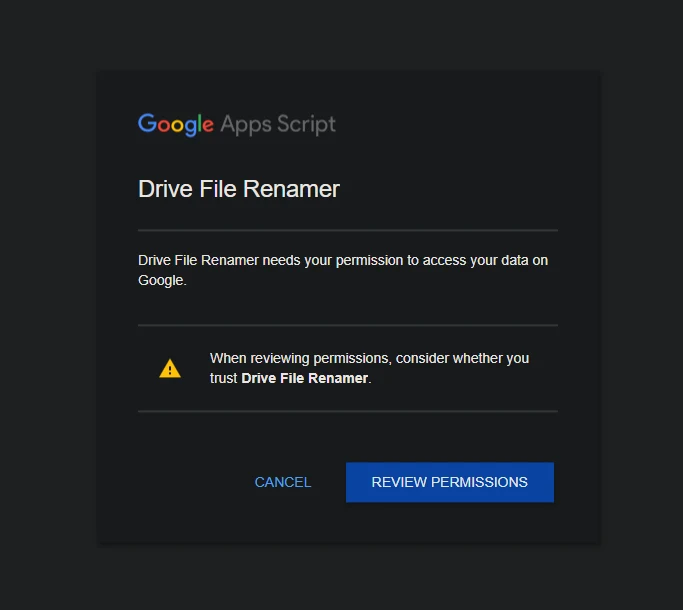
A Google permission popup opens — click into it
Google Apps Script shows a short prompt naming this app and asking you to consider whether you trust it, with a Cancel and a Review permissions button. Click “Review permissions” to see exactly what's being requested before agreeing to anything.
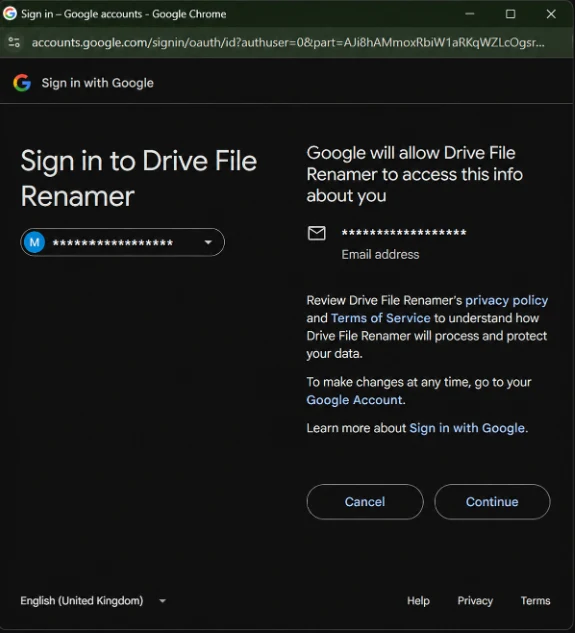
Google confirms which account you're signing in with
A short screen shows the account you picked and tells you Google will share your email address with Drive File Renamer — that's the only account info this app ever receives.
Review the permission screen
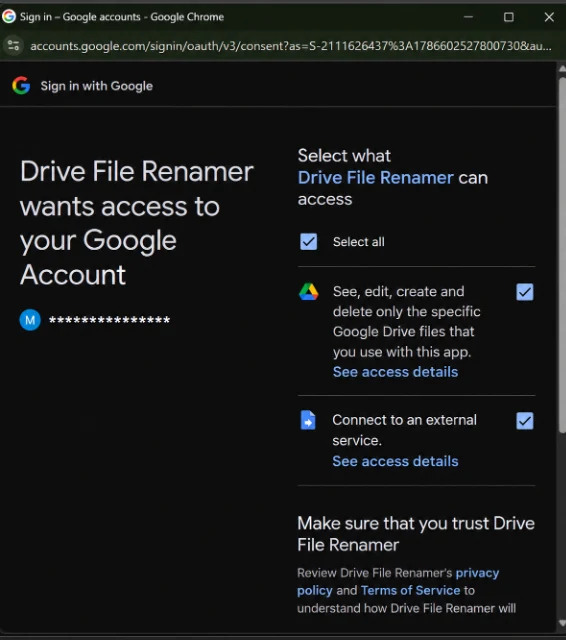
Google shows exactly one line: “See, edit, create, and delete only the specific Google Drive files you use with this app.” That's the entire request — nothing about Gmail, Photos, Calendar, or the rest of your Drive. A second, unrelated line covers connecting to Stripe for billing on paid plans.
Click Allow
You land back in the app, already signed in, ready to open the file picker and start building a rename pattern.
This app is verified by Google
Drive File Renamer has completed Google's full OAuth verification review — the permission screen you see is the standard, verified sign-in flow, with no "unverified app" warning to click through. Google independently reviewed exactly what this app requests access to before approving it.
Why the permission is safe to grant
- The drive.file scope is per-file, granted only for files you select through Google's own picker — the same dialog Gmail and Docs use.
- It is technically incapable of listing, reading, or touching anything you didn't pick. Broader access simply isn't part of what was requested.
- You can revoke access at any time from myaccount.google.com/permissions — it stops working immediately, and nothing about your files changes when you do.
Full detail on what's collected and why is in the privacy policy. Questions before signing in? [email protected].
Ready when you are
Sign in, pick a few files, and see the preview before anything changes.
Launch the app